

On this page
In short
Build your client agreement once, send it from any profile, and let clients sign in your portal by typing or drawing. The signed PDF files itself.
Every new client starts with a contract. For most matchmakers that means a Word file, a separate e-signature subscription, and a signed PDF saved somewhere you hope you can find later. HoneyBee Match now does all of it in one place: build your agreement once, send it from any profile, and the signed copy files itself on that profile.
Build Your Agreement Once
Go to My Firm › Agreements and start a new agreement. Five short steps walk you through it: Your business, Services & payment, Clauses, Signing and Review. Your firm's details are filled in for you, and a preview shows how each choice reads in the agreement as you make it.
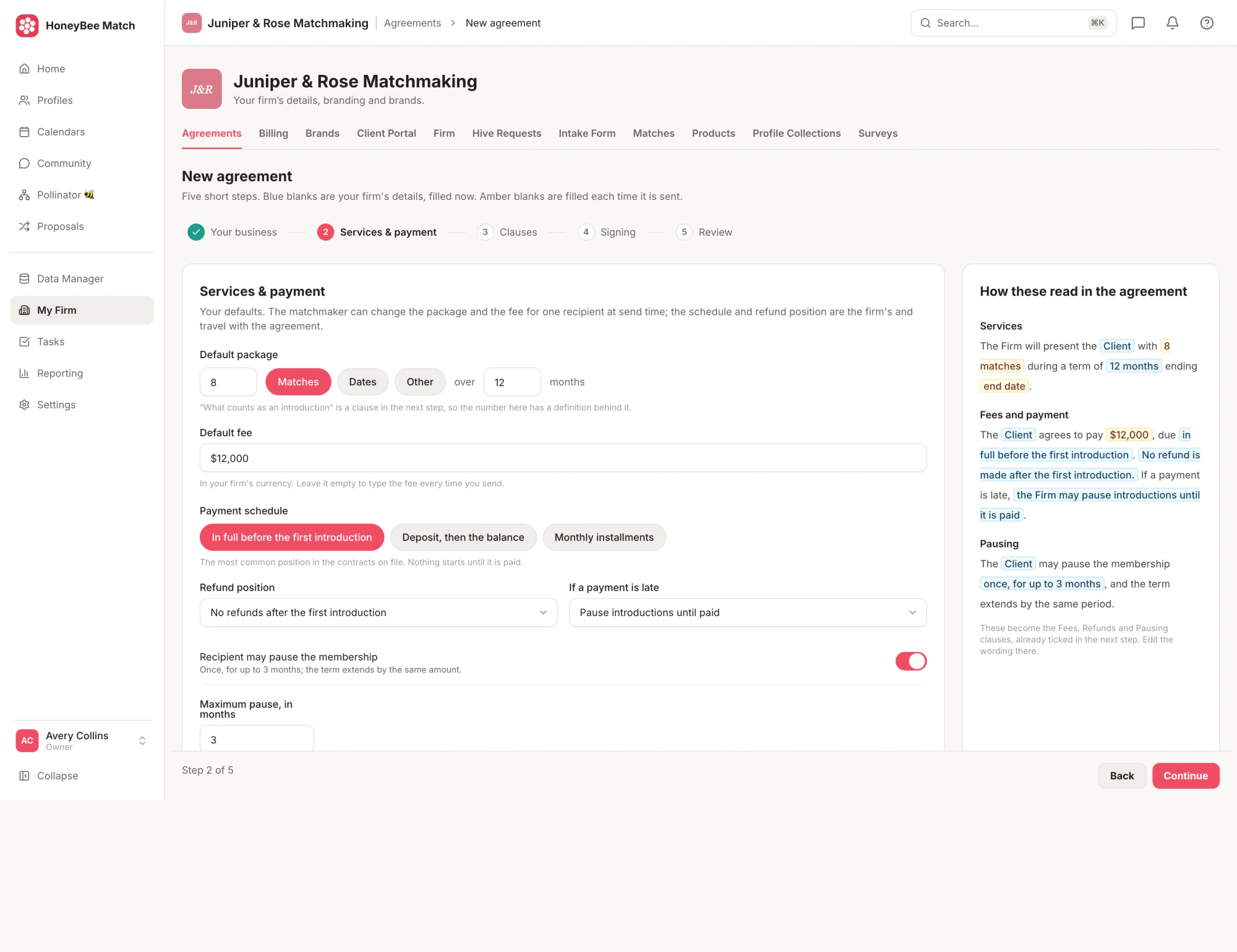
On Services & payment, set your default package (for example, 8 matches over 12 months), your fee, and how it is paid: in full before the first introduction, a deposit and then the balance, or monthly installments. Choose your refund position, what happens when a payment is late, and whether a client may pause their membership. Each choice becomes the matching clause, already filled in.
On Clauses, tick the ones your agreement needs from a library of 16, each with standard wording you can edit:
- What counts as an introduction, fees and payment, refunds, and pausing the membership.
- No guarantee of outcome, conduct and honesty, background checks, and entering a relationship.
- Confidentiality, photo and profile release, and personal information.
- Ending the agreement, limits of responsibility, governing law and disputes, and the standard closing clauses.
Add clauses of your own with Add custom clause. The electronic signature clause and the signature block are always included.
Already Have a Contract?
Choose Import from a contract and upload the one you use today, as a PDF, a Word .docx, or a text or Markdown file. HoneyBee reads it into an agreement you can edit, with your services, your payment terms and each of your clauses. Nothing is saved until you review it.
Editing an agreement saves a new version. Agreements you already sent keep the version they went out as, so what a client signed never changes under them.
Before you save, you confirm that your firm is responsible for the wording. The clause library is a starting point, not legal advice, so have it reviewed by a lawyer licensed where you do business.
Choose How Signing Works
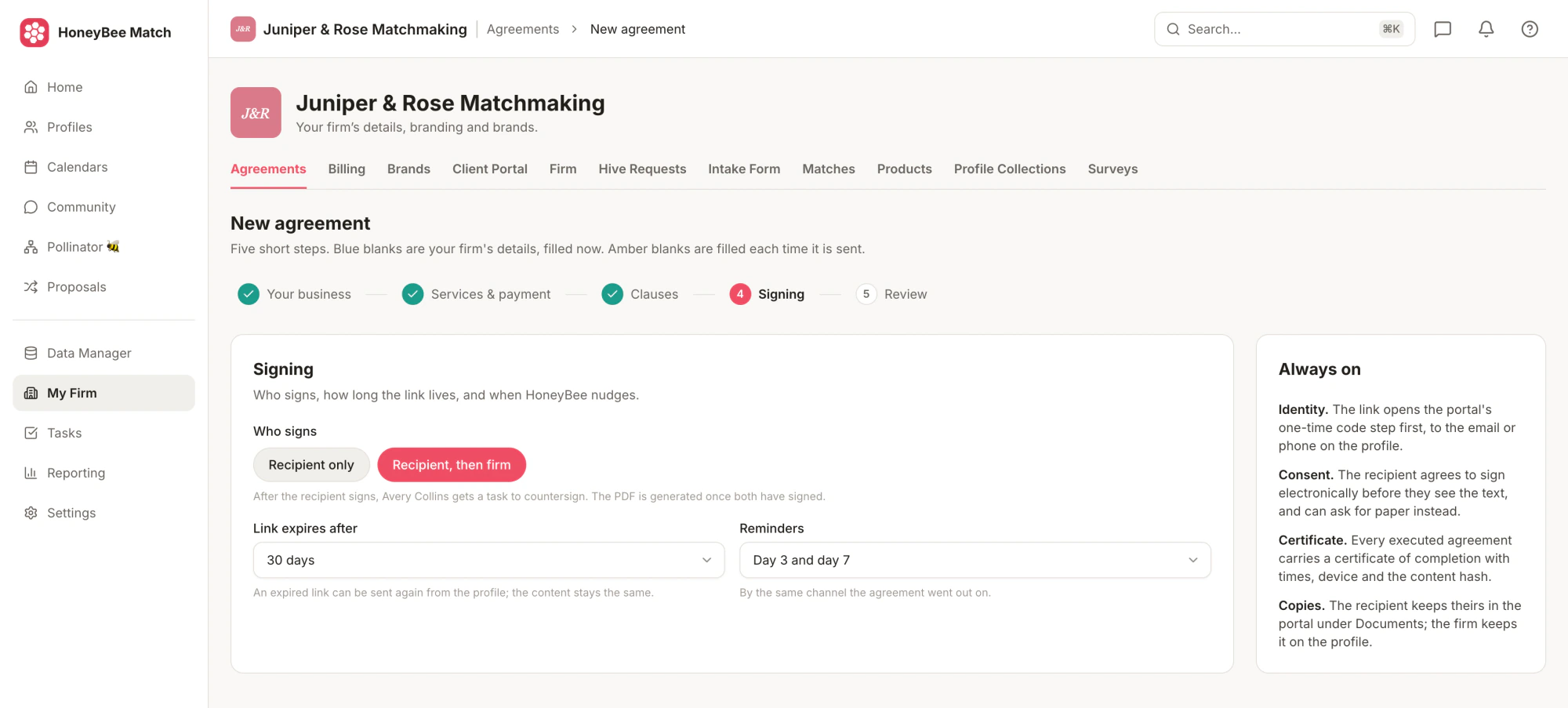
- Who signs: the client only, or the client and then your firm. With a countersignature, the person who signs for your firm gets a task as soon as the client has signed.
- How long the link works, such as 30 days. You can send an expired agreement again from the profile, and its content stays the same.
- Reminders on day 3 and day 7, on day 3 only, weekly until it is signed, or none. Reminders go out the same way the agreement did.
Send It From Any Profile
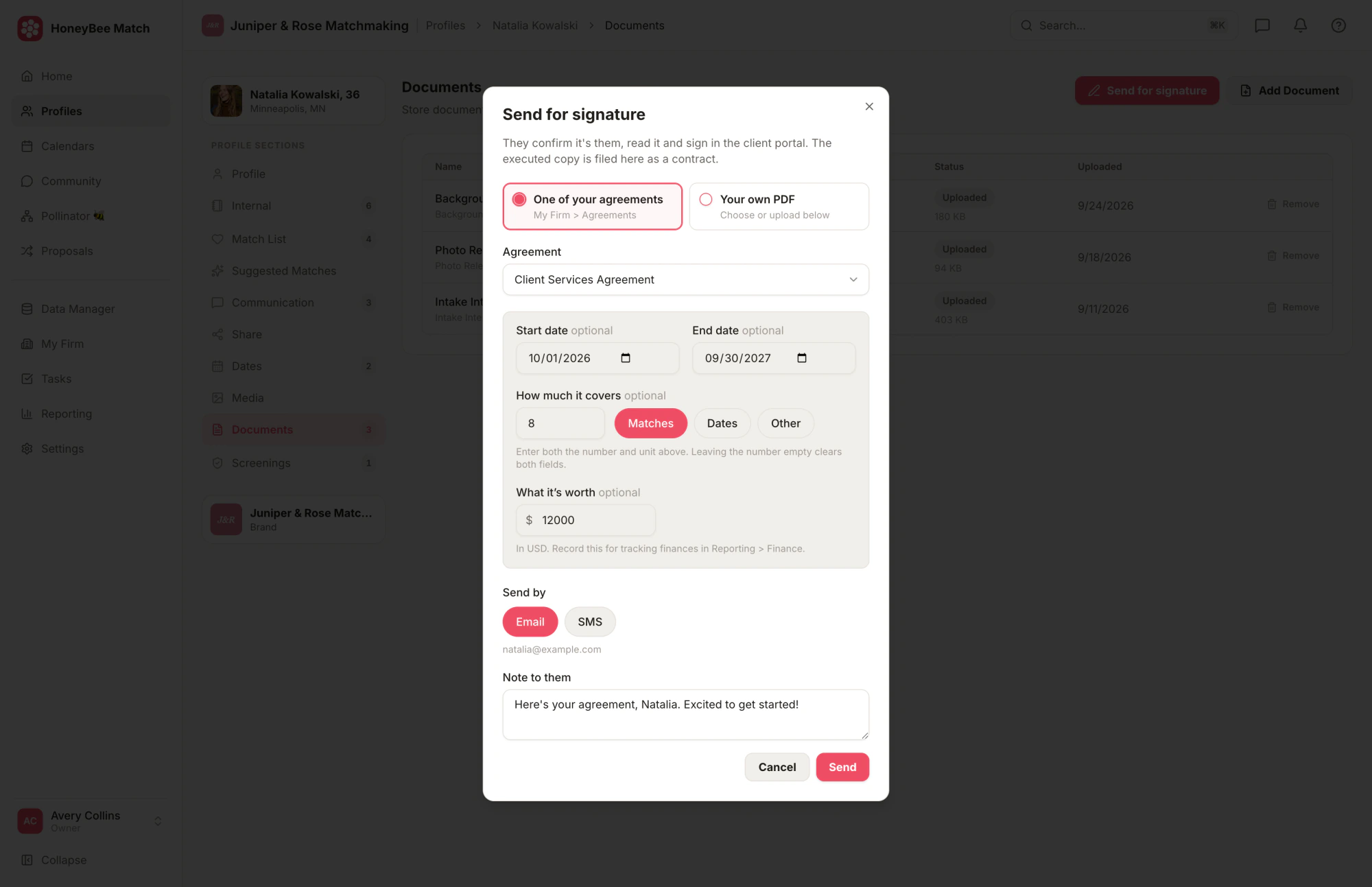
Open a profile, go to Documents, and click Send for signature. Pick one of your agreements, or send your own PDF and HoneyBee adds a signature page and certificate after its last page. Set the start and end dates, the package and the fee for this client, and record what the agreement is worth so it shows up in Reporting › Finance. Send it by email or SMS with a short note.
Your Client Signs in Your Client Portal
The link opens your client portal, in your firm's branding, on a phone or a computer. Signing takes three steps:
- Confirm it's them, with a one-time code sent to the email or phone on their profile.
- Agree to sign electronically. A client who prefers paper can say so instead.
- Read the agreement to the end, then sign by typing their name or drawing their signature, and confirm they intend it to be legally binding.
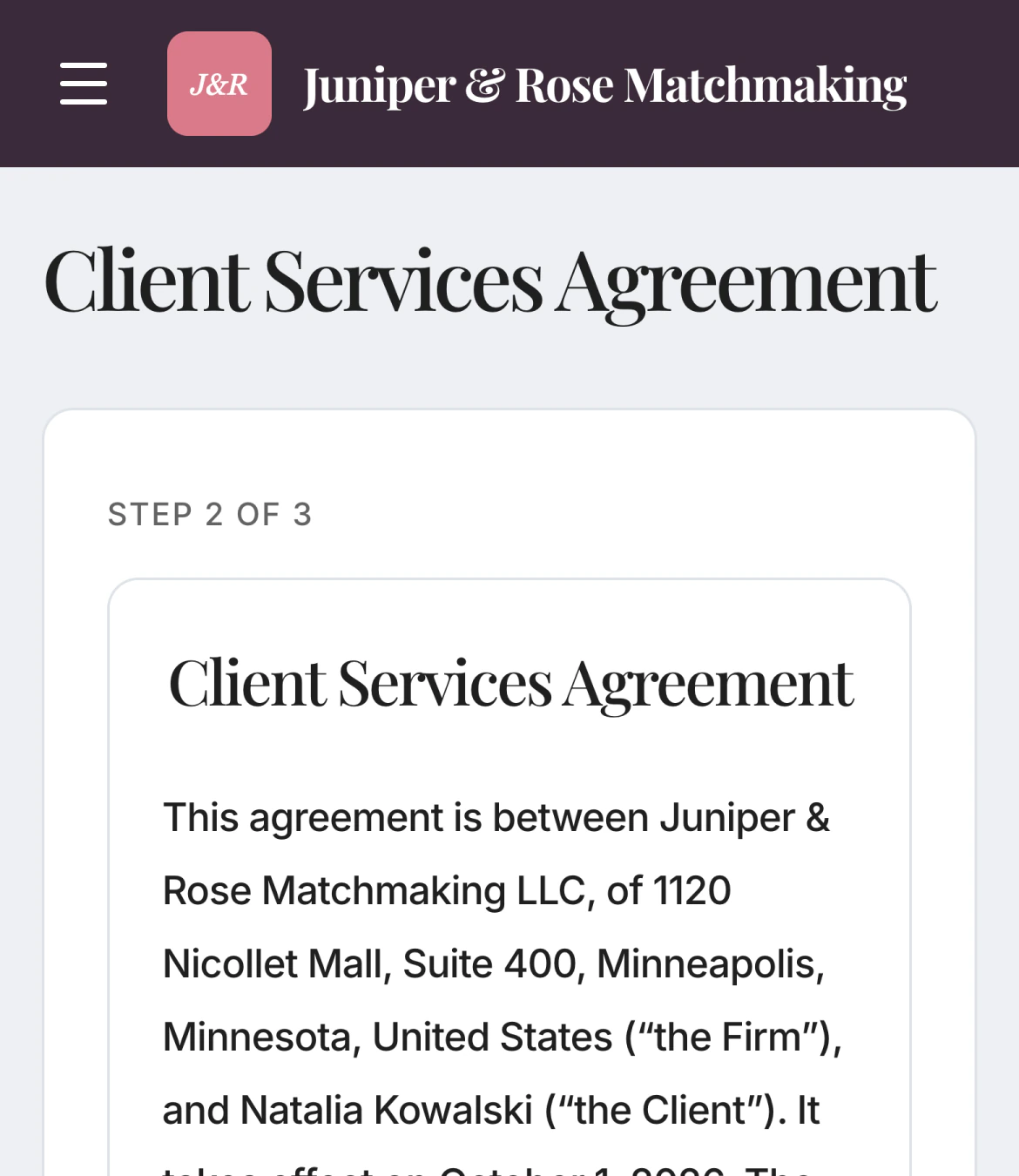
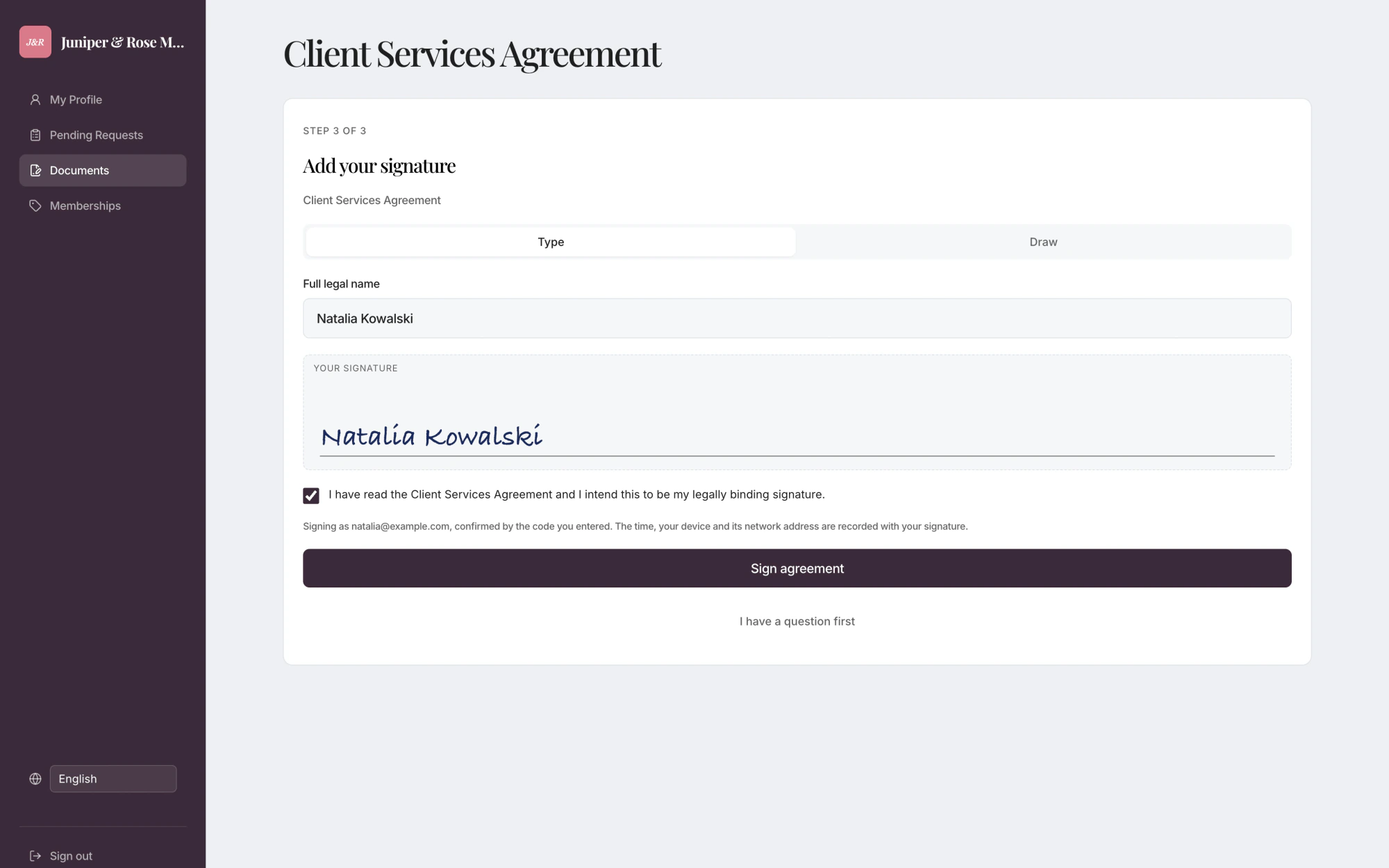
The time, the device and its network address are recorded with every signature.
The Signed Copy Files Itself
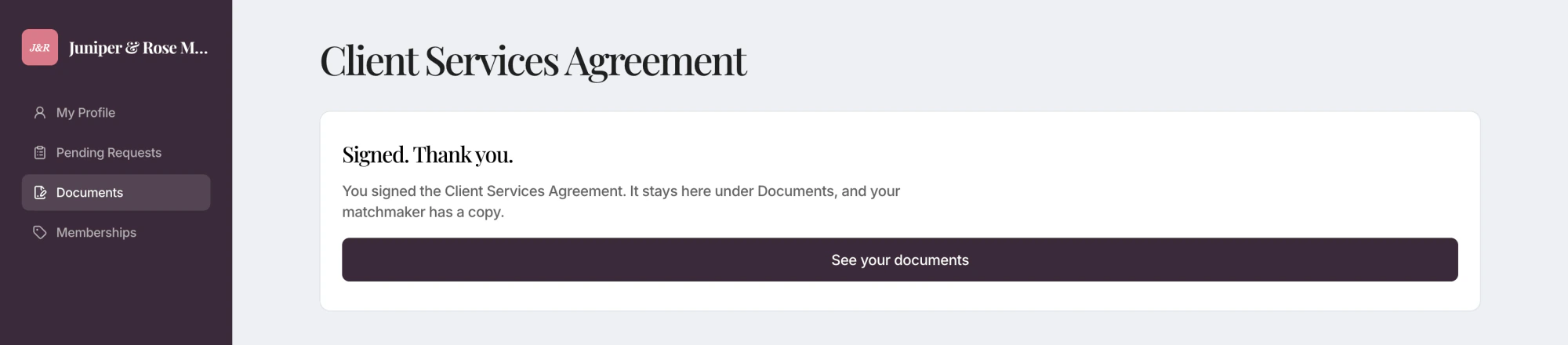
Once the agreement is signed, and countersigned if you chose that, HoneyBee creates the executed PDF. It ends with a certificate of completion that lists when each step happened, the device used and a fingerprint of the exact text that was signed. The PDF is saved to the profile's Documents as a contract, with a summary like any other document you upload. Your client keeps their copy in the portal under Documents.
Who Can Use It
Contracts and e-signature are included on the Growth plan and above. Compare plans on the pricing page, or book a demo and we'll set up your first agreement with you.